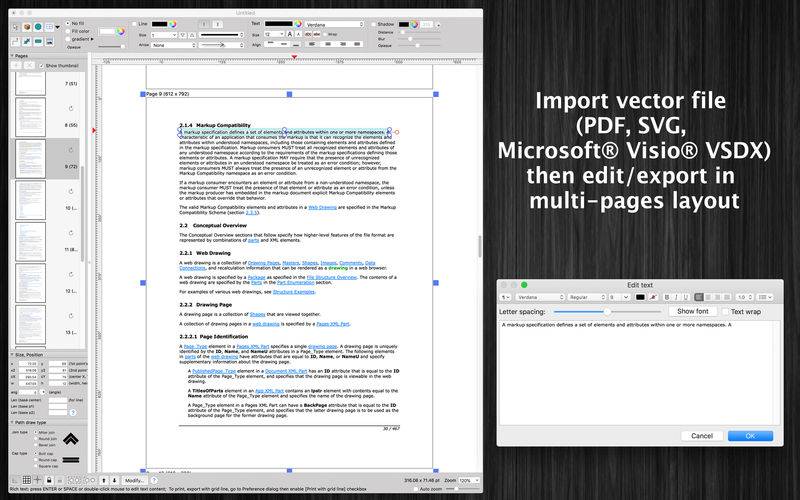

[xEditor for Pdf Vsdx Svg] application could help you to import (PDF, VSD, VSDX, SVG…), edit then export many popular vector file formats like PDF, Visio (VSDX), SVG.
Functions of the application:
+ SUPPORT PDF (Vector) formats: import/export all vector information from/to pdf file (Adobe Reader format)
+ IMPORT/EXPORT VISIO formats: VSDX, VSDM (Microsoft Visio Format)
+ IMPORT old VISIO formats: VSD, VSS (old binary format from Visio)
+ IMPORT/EXPORT many other formats: SVG (vector), png, jpeg, tiff…
+ MULTI-PAGES: user could edit document in multi-pages layout
+ SMART LINE / CONNECTOR:
Smart Line if attached to a shape will automatically change position every time when the main shape is moved, resized.
+ BASIC SHAPE:
There are many shapes to add to your diagram. You could add/change text to display inside the shape.
Drawing UML activity diagram will be easier using these shapes.
+ ALIGN MULTIPLE ITEMS:
Select many items then do right-click mouse to select alignment options as following:
(also allow to auto-align with another objects)
– Left
– Right
– Top
– Bottom
– Center (Horizontal or Vertical)
– Distribute
– Horizontal center in View
– Vertical center in View
+ EXPORT TO VECTOR/IMAGE FILE:
Press “Cmd + E” to export current diagram to an image file with format of PDF, VSDX, SVG, PDF, TIFF or PNG or JPEG.
+ SUPPORT PRINT:
Press “Cmd + P” to print current document.
+ CAPTURE TO CLIPBOARD:
Press “Cmd + 4” or click on Capture button to export current diagram image to clipboard, then you could paste that image to another application.
Example: Open [Preview] application, press “Cmd + N” to paste above captured image to view or to save to an image file.
Of course, you could paste that image to Excel, Word application too.
—————–
Other functions:
– Unlimited Undo/Redo (shortcut key: Cmd-Z / Shift-Cmd-Z)
– Copy / Paste (shortcut key: Cmd-C / Cmd-V)
– Duplicate select items (shortcut key: Cmd-D)
– Group / Ungroup Items (shortcut key: Cmd-G / Shift-Cmd-G)
– Lock/Unlock items position (shortcut key: Cmd-L / Shift-Cmd-L)
– Rotate left, rotate right (shortcut key: Cmd-J / Cmd-K)
– Short cut key CMD+B, CMD+I to change text to Bold or Italic
– User could drag right mouse on a current shape to create a new attached object with line
– Double click on the canvas to create a new text box item
– Allow to switch current select object to another shape type
– Allow to change selected items display order
– Scale size of select items
– Path boolean operations supported
– Flip select items
– Shadow supported
– Snap to Grid
– Auto Align with another object when resize or move
– Change display order
– Print supported (shortcut key: Cmd-P)
– Customizable color / Font / Size / Line Type
– Support gradient fill to shapes
– Customize measure unit and scale (point, cm, mm, inch….)
– Allow user to select items then save them to Favorites list to reuse later